
Description
In the high-stakes world of digital business, a single server crash, malicious hack, or faulty update can wipe out months of hard work and revenue. The free version of the plugin is a great start, but UpdraftPlus Premium offers the essential, commercial-grade safety net your business needs to survive and thrive. Trusted by over 5 million users, the Premium version upgrades your protection with features like incremental backups (saving time and server resources) and powerful migration tools. Stop worrying about data loss and start focusing on growth, knowing that a safe, encrypted, and easily restorable copy of your entire site is always ready with UpdraftPlus Premium.
Key Features
UpdraftPlus expands on the free plugin’s foundation to deliver a professional-grade solution:
- One-Click Restore: Effortlessly restore your entire site, files, and database directly from the WordPress dashboard with just a few clicks.
- Comprehensive Scheduled Backups: Set precise, non-disruptive backup schedules (e.g., during low-traffic hours), unlike the free version’s fixed intervals.
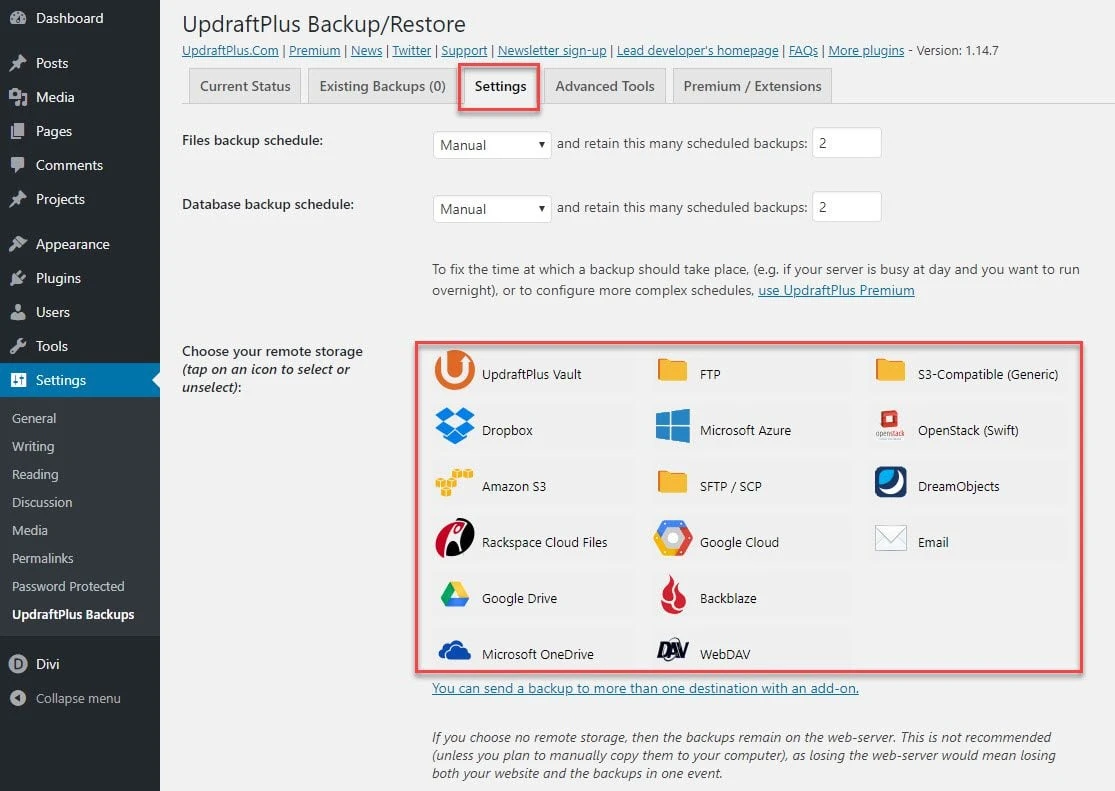
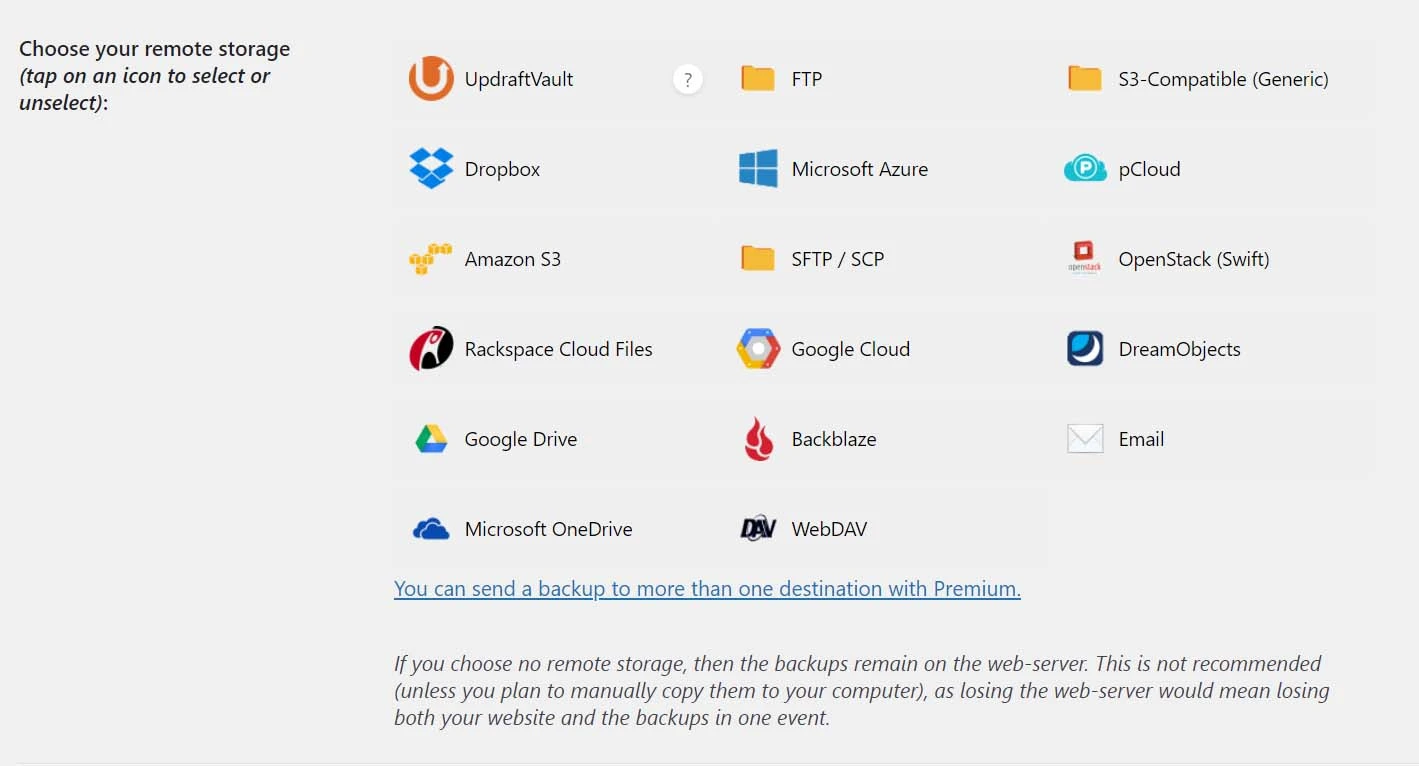
- Extensive Cloud Storage Options: Connect to more premium destinations like Microsoft OneDrive, Microsoft Azure, Google Cloud Storage, SFTP, SCP, and Backblaze B2, in addition to the standard Dropbox and Google Drive.
- Premium Support: Get fast, expert help directly from the developers at TeamUpdraft for any issue, ensuring minimal downtime.
- Use on Unlimited Sites: The Enterprise plan and higher allow you to use UpdraftPlus Premium across an unlimited number of your WordPress websites.
Pro Features
These advanced capabilities in UpdraftPlus Premium turn a simple backup tool into an indispensable, site-management powerhouse:
- Incremental Backups: Only backs up files that have changed since the last full backup. This dramatically saves server resources, reduces backup time, and significantly lowers storage costs.
- Automatic Pre-Update Backups: Automatically creates a backup of your entire site right before any WordPress core, theme, or plugin update. If an update fails, you can instantly roll back, completely avoiding site-breaking errors and SEO risk.
- Database Encryption: Secure your sensitive user data and WooCommerce transactions with encrypted database archives, providing enhanced privacy and security in transit and at rest.
- Migrator & Cloning: Easily duplicate, migrate, or clone your WordPress site to a new domain or host with direct site-to-site migration features, perfect for staging or rebranding.
- Backup Non-WordPress Files: Include or exclude files and databases that exist outside of your main WordPress installation, which is vital for complex e-commerce or custom application setups.
- Advanced Reporting: Get detailed email reports and cryptographic checksums to verify the integrity and security of your backup files.
WooCommerce Integration
For any e-commerce store running on WordPress, reliable, real-time backup is non-negotiable. UpdraftPlus provides:
- Real-Time Backups: Works seamlessly with the incremental backup feature to capture every order, transaction, and inventory change as it happens.
- Database Exclusions/Inclusions: Allows granular control over backing up large WooCommerce tables and custom databases, speeding up the process.
- Secure Transaction Data: Uses database encryption to protect customer information and order details during the backup process.
- Zero-Downtime Migration: Clone your entire WooCommerce store to a staging site for testing new payment gateways, plugins, or themes without interrupting live sales.
Setup & Installation
- Download the Plugin. Purchase your UpdraftPlus license and download the plugin
.zipfile from the TeamUpdraft account area. - Upload to WordPress. Log in to your WordPress dashboard, navigate to Plugins > Add New, and click Upload Plugin. Select the
.zipfile. - Activate. Click Install Now.
- Configure Storage. Select your preferred remote storage (e.g., Google Drive, UpdraftVault, or SFTP) and authorize the connection.
- Set Schedule. Go to the Settings tab to define your file and database backup schedules (e.g., Incremental Backups every 4 hours).
How to Install & Configure (Beginner-Friendly Guide)
The UpdraftPlus Premium interface is designed for simplicity, making site protection accessible even for non-technical users.
- Find the Dashboard: After activation, click the UpdraftPlus Backups item that appears under the Settings menu in your WordPress dashboard.
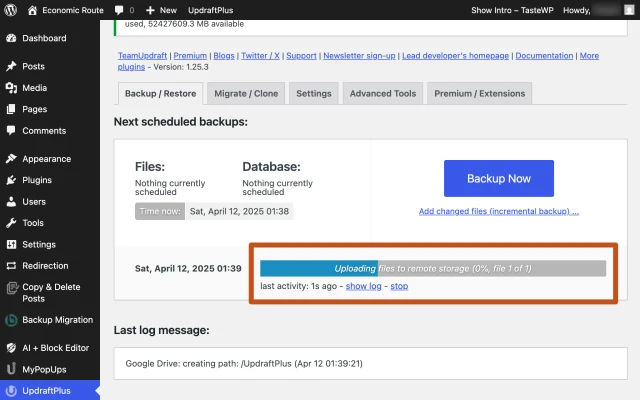
- Click “Backup Now”: To create your first full backup, simply click the big blue “Backup Now” button on the main tab. This confirms the plugin is working and creates your first safety copy.
- Choose Your Cloud Destination: Click the Settings tab. You’ll see icons for all the remote storage options (Google Drive, Dropbox, Azure, etc.). Click the one you want, and the plugin will walk you through a simple authorization process (usually just logging into the cloud service).
- Schedule for “Set and Forget”: Also in the Settings tab, use the dropdown menus to set your preferred file and database schedules. For a busy e-commerce site, you might choose “Daily” for files and “Every 4 hours” for the database to utilize the powerful incremental backup feature of UpdraftPlus Premium.
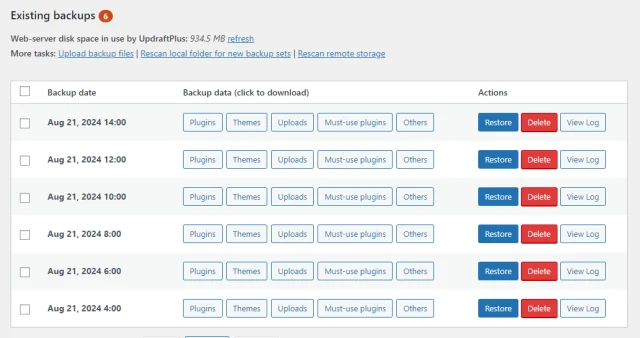
- Restoring is Easy: If disaster strikes, return to the main UpdraftPlus dashboard. You will see a list of your existing backups. Just click the “Restore” button next to the backup you want to use, select the components (Plugins, Themes, Database, etc.), and the plugin handles the rest.
Mobile-Friendly & UX Experience
A great backup plugin shouldn’t tie you to your desktop. UpdraftPlus ensures a seamless experience across all devices.
- Responsiveness: The plugin’s admin interface is fully responsive, ensuring you can manage, check the status of, and even initiate or restore backups from any smartphone or tablet browser.
- Mobile Flow: Key actions, such as checking backup status, viewing reports, and performing a quick restore, are optimized for touch and tap interfaces, allowing for rapid emergency response while you’re away from your office.
- UI/UX Benefits: The clean, focused design and logical tab structure (Backup/Restore, Settings, Advanced Tools) minimize cognitive load. The premium version’s detailed, clear reporting means less time trying to decipher cryptic error logs and more time focusing on your business.
Performance & Scalability
UpdraftPlus Premium is engineered to protect large, high-traffic WordPress websites and WooCommerce stores efficiently.
- Speed Optimization: The Incremental Backups feature is the cornerstone of its performance. By only backing up new changes, it dramatically reduces the size of backup archives and the time required to create them, minimizing server load.
- Database Usage: The plugin is highly optimized for large databases. It efficiently handles large WooCommerce tables and custom post types, preventing timeouts and resource exhaustion during backup and restoration.
- Compatibility with Caching/CDN: UpdraftPlus Premium is designed to work alongside popular caching plugins and CDNs without conflict. Its processes are isolated, ensuring they do not interfere with site delivery or user experience.
- Scalability for Large Stores: With specific features like Multisite/Multi-network compatibility (for the Agency/Enterprise plans) and specialized non-WordPress file backups, the plugin scales effortlessly from a single blog to a massive, multi-store e-commerce network.
Pricing
- Original Price: $95 + / Yearly | Visit Site
FAQ
Find quick answers to the most common questions about the leading WordPress backup solution.
- What are incremental backups in UpdraftPlus Premium? Incremental backups are a pro feature where only files that have changed since the last full backup are saved, drastically saving time and server resources.
- Does UpdraftPlus Premium work with WordPress Multisite? Yes, the Agency and Enterprise plans for UpdraftPlus are fully compatible with WordPress multisite and multi-network installations.
- Can I restore a backup from another plugin using UpdraftPlus Premium? Yes, UpdraftPlus includes an importer that can restore backups made by several other popular WordPress backup plugins.
- What cloud storage locations are available with UpdraftPlus Premium? You gain access to Microsoft OneDrive, Azure, SFTP, Google Cloud, Backblaze B2, and more, in addition to the free options.
- How do I install UpdraftPlus Premium on a new website? You install it like any other plugin (upload the ZIP file) and activate your license key on the new site’s UpdraftPlus settings panel.
- Is UpdraftPlus Premium good for large WooCommerce stores? Absolutely. Its incremental backups and database encryption features make UpdraftPlus ideal for high-volume, security-critical e-commerce sites.
- What is the difference between UpdraftPlus Free and UpdraftPlus Premium? The premium version adds critical features like incremental backups, pre-update backups, advanced remote storage options, and premium technical support.
- Does UpdraftPlus Premium include a migration tool? Yes, the Migrator is one of the key add-ons included in the UpdraftPlus package, allowing for direct site-to-site migration.
- Can I schedule my backups to run at an exact time? Yes, this is a core feature of UpdraftPlus, allowing you to schedule backups for low-traffic hours to minimize impact on site performance.
Sebastian Moreau –
UpdraftPlus Premium 2.25.8.26 is one of the most reliable and user-friendly backup and migration solutions for WordPress. It allows full site backups, easy restoration, and smooth site migration with just a few clicks. The added security features and multiple remote storage options make it perfect for both beginners and professionals. I downloaded it from AffordableGPL, and the plugin worked perfectly—genuine files, fast delivery, and unbeatable pricing. A solid investment for any WordPress site owner.